# Firebase Host
## Install the firebase-tools CLI
🏃♀Skip this step if you already have firebase tools installed.
If you do not have `npm`, you must install that first.
*☝Note: If you are not sure whether `npm` is installed on your machine, run `$ npm -v` , and see if it lists a version number. If it does, then you already have `npm`. If it says “command not found”, you need to install it.*
After npm install past this command in your terminal
```
npm install -g firebase-tools
```
`firebase-tools` is now installed!
## Initialize Firebase hosting for your Flutter project
Open a terminal and navigate to the root directory for your Flutter app and run this command to login:
```
firebase login
```
☝️*Note: If you are already logged in and want to re-login as a different account, first logout with:*
```
firebase logout
```
Follow the command prompt and the link in your browser. Accept the permissions by clicking **Ok**. When you return to your terminal you should see that you are now logged in:
Next, run this command from the root directory of your Flutter app to initialize your Firebase project:
```
firebase init
```
Use the arrow keys to navigate the cursor to **Hosting** and hit the spacebar to select it, then press enter. Now you will see this screen:
Select **Use an existing project** by pressing Enter. Use the arrow keys to select the project you made in step 1.
Next, enter `build/web` as the public directory and press enter, then enter **y** (for yes) to select the single page app option:
☝️Note: After this step, 2 new files are created (`.firebaserc` and `firebase.json`) in your root directory. Check and make sure they are there. If not, check for errors in the `firebase init` step and retry.
## Build and deploy!
Build your app for web:
```
flutter build web
```
This builds the necessary files in `/build/web`.
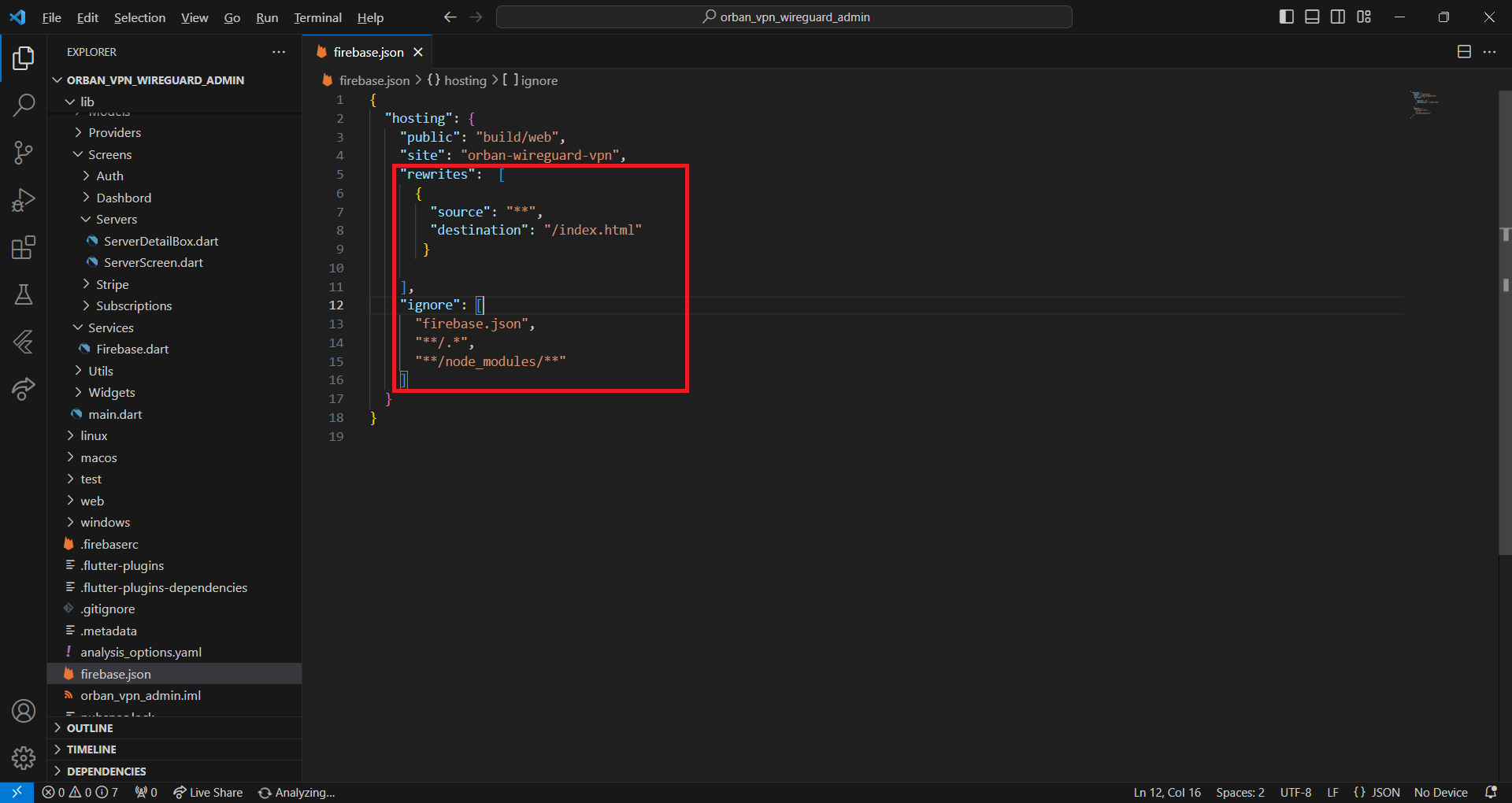
Add this code to your `firebase.json`
```
"rewrites": [
{
"source": "**",
"destination": "/index.html"
}
],
"ignore": [
"firebase.json",
"**/.*",
"**/node_modules/**"
]
```
Finally, run:
```
firebase deploy
```